

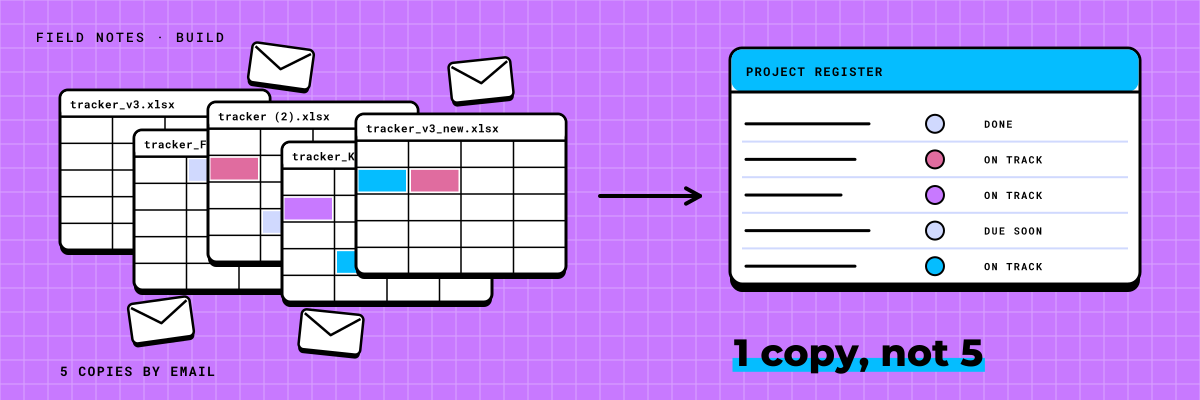
Every company has one spreadsheet that quietly runs part of the business. It might track open actions, permits, contracts, equipment, risks or the budget. It has a name like Actions_Tracker_v14_FINAL.xlsx, and it goes out by email every Monday.
By Wednesday there are four versions. One person updated their rows and sent it back. Another added a column. A third sorted it and broke a formula. Someone, usually the same someone every week, spends Friday merging them into a master copy that is out of date by Monday.
Nothing is wrong with the people, and nothing is wrong with Excel. Excel is excellent for working with numbers. It was never meant to be the single record that a dozen people update at once.
Where the spreadsheet stops working
The signs are familiar:
- Copies. The file lives in inboxes, on desktops and in a shared folder, and nobody is sure which is current.
- No owner per row. Every row belongs to everyone, so overdue items belong to no one.
- No history. When a status changes from Open to Closed, there is no record of who changed it or why.
- Status by free text. Open, open, In progress, WIP, Done?, see email.
- All or nothing. Everyone sees every row, or the sensitive ones live in a second spreadsheet.
- Reminders by memory. Someone has to notice the due date and chase.
What a register changes
A register is the same table, kept in one place in SharePoint, with a few rules attached. The columns look familiar. What changes is how the rows behave.
- One copy. Everyone works in the same list. Nobody emails it, because the link is always current.
- Owners. Every row has a named person, picked from your directory, not typed.
- Views per person. My items, my team's items, overdue, due this week, by project. The same rows, filtered for whoever is looking.
- Overdue flags. When a due date passes, the row is flagged without anyone touching it.
- History. Every change keeps who made it and when, so the question of who closed this item has an answer.
- Reminders. The owner gets a note a few days before the due date, and another if it slips. The person who used to chase gets their Fridays back.
- Pick lists. Status is Open, In progress or Closed. Nobody can type WIP.
What stays the same
People worry they are losing their spreadsheet. They are not. The register has a grid view that edits like Excel, rows can still be pasted in bulk, and anyone can export the whole thing to Excel at any time to sort, pivot or chart it. Power BI reads it directly.
What changes is where the record lives. The export is a copy for analysis. The register is the record.
The spreadsheet does not go away. It stops being the place where the record lives.
Step through a real-looking tracker: the spreadsheet as it is, the SharePoint lists it maps to, and the app those lists become, with an owner on each row and a view for each person.
In one scenario: the 20-tab budget
In one scenario, a 60-person engineering firm ran its budget from a workbook called Budget_FINAL_v7 (2).xlsx, with a tab for every week. Department leads emailed changes, the controller typed them in, and the reasons lived in someone's OneNote. Closing the month took three days, mostly spent making the tabs agree.
Checked formula by formula, the workbook had a handful of broken totals. The twenty tabs were really one list of budget lines, copied and edited by hand. That list became a register: each line with an owner, and each change a record with a date and a reason. A custom web part gave each department lead their own view, and a Power BI view built the month-end report from it. It ran on real numbers in the first week, and the workbook's history came across, so no past change was lost.
Month-end now closes in half a day instead of three. When anyone asks why a number moved, the answer comes with a name, a date and a reason.
Why it is usually the first thing we build
When a build starts, a register on your real data is usually the first thing you see. It is quick to build, and people recognize their own rows within days, which tells everyone early whether we have understood the work.
It is also what the other tools need. Approvals route from a register. Dashboards read from it. Agents fill it, reading a form or an email and adding the row so nobody retypes it. Get the register right, and every tool after it has something reliable to work with.
Before the first session, it helps to answer five questions about the spreadsheet you want to replace:
- What is one row? An action, a permit, a budget line, a contract.
- Who owns a row, and who can see it?
- What are the statuses, and what moves a row from one to the next?
- Who needs which view on a Monday morning?
- What should trigger a reminder, and who gets it?
If you are not sure which spreadsheet to start with, pick the one that gets emailed most, or the one somebody spends Friday merging. That is usually the one costing the most.
If you have a tracker like this, book the Scan. It is free: an automated scan of your Microsoft 365 and a few 30-minute conversations with the people who keep the spreadsheet, and you get numbers on what it costs you today.