

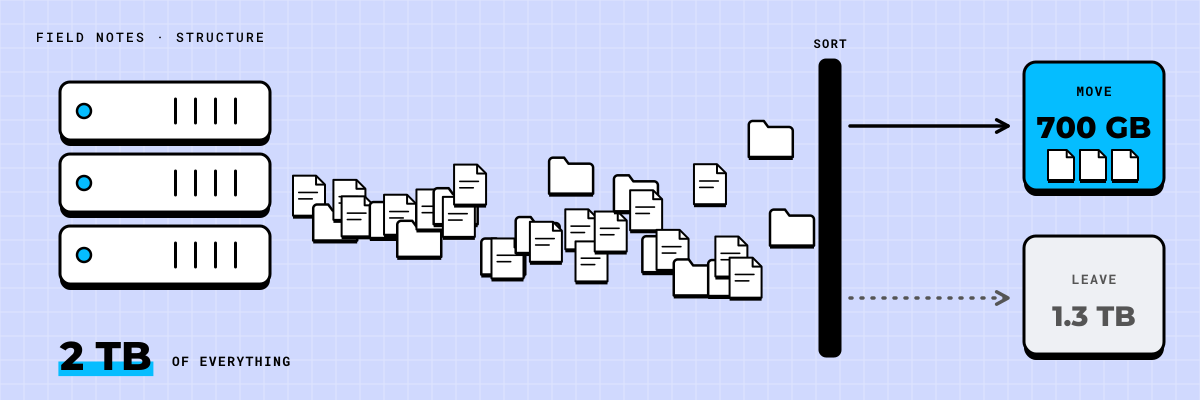
Most file servers we look at hold about two terabytes. Ask who uses it and the answer is "everyone." Ask what is on it and nobody is quite sure. That is normal. It is also why migrations stall: the job looks enormous, so it keeps sliding to next quarter.
The good news is that most of that 2 TB does not need to move at all.
Most of the server is finished work
When we sort a typical file server by the date files were last changed, the pattern is nearly always the same. A small share of folders, often a fifth or less, has been touched in the past year. The rest is closed projects, home drives of people who left years ago, old software installers, scans of scans, and three copies of the same proposal saved as "final," "final2" and "final USE THIS."
Moving all of it to SharePoint copies the clutter into a new place and makes that new place harder to search. It also costs more, because migration time grows with volume.
In one scenario, a 60-person engineering firm had 2 TB on a single server. About a third of it, roughly 700 GB, belonged to work that was still open. The rest was closed project records they were required to keep, plus duplicates, personal files and installers nobody had run in years. Only the live third moved, over four nights, and nobody lost a file.
Map folders to the work that is still alive
The first step is not technical. Sit down with the people who run the work and list what is active today: current clients, open jobs, and the finance and HR folders people open every week. Then match each of those to a folder on the server.
Anything that maps to live work is a candidate to migrate. Anything that does not is either a record or clutter. This conversation takes about an afternoon per division, and it saves weeks later.
Every folder ends up in one of three piles:
- Migrate: active work people open every week or month. This goes to SharePoint and Teams, organized by client, project or department.
- Archive: closed work your records rules say you must keep, such as contracts, project deliverables and financial records. This goes to a read-only archive with a retention period attached.
- Delete: duplicates, empty folders, installers, personal photos and anything past its retention date. This is removed, with sign-off from the owner of each area.
Try it on a sample server.
Keep what the records rules require, and nothing more
Archive is where people get nervous, and fair enough. Nobody wants to be the person who deleted the contract a lawyer asks for three years from now. The answer is to write down your records rules before you sort, not during.
Most companies need only a handful: project files kept for a set number of years after closeout, financial records for as long as your accountant and tax rules require, HR files for as long as employment law says. Once those are written down, the sorting becomes a lookup instead of a debate.
The archive does not need to be pretty. It needs to be searchable, read-only and labeled with how long it stays.
A useful rule of thumb: if nobody has opened a folder in three years and no records rule applies to it, it belongs in the Delete pile. Ask the owner once, give them a week, then act.
Move one division at a time, overnight
Big-bang migrations, where everything moves over one weekend, put the whole company at risk on Monday morning. We prefer to move one division at a time, with the copy running overnight so nobody loses a working day.
A typical sequence looks like this:
- Copy the division's Migrate folders overnight while the server stays in use.
- Run a final catch-up copy the next night to pick up the day's changes.
- Switch the old folders to read-only and point people to the new location.
- Hold a short drop-in session that morning for questions.
Each division takes two or three days from start to finish. The next division starts once the first is settled. If something goes wrong, it affects 15 people, not 150.
What happens to all the old links?
This is the part most migrations forget. Spreadsheets link to other spreadsheets. Project templates point to a shared drive letter. Someone's desktop has shortcuts to twenty folders. When the server goes away, those links break.
Before the move, scan for the most-used links and shortcuts and build a simple map from old path to new location. Fix the templates and shared workbooks the business depends on. For everything else, keep the old server read-only for a set window, usually 60 to 90 days, so people can find what they need and update their own links.
After that window, the server can be switched off.
If you want to know what your own server looks like before committing to a plan, book the Scan. In 30 minutes we look at your Microsoft 365 with you and put numbers on what should move, what should be kept and what can go.