
How to Build a Microsoft Teams Bot Policy Before the May 2026 Detection Rollout
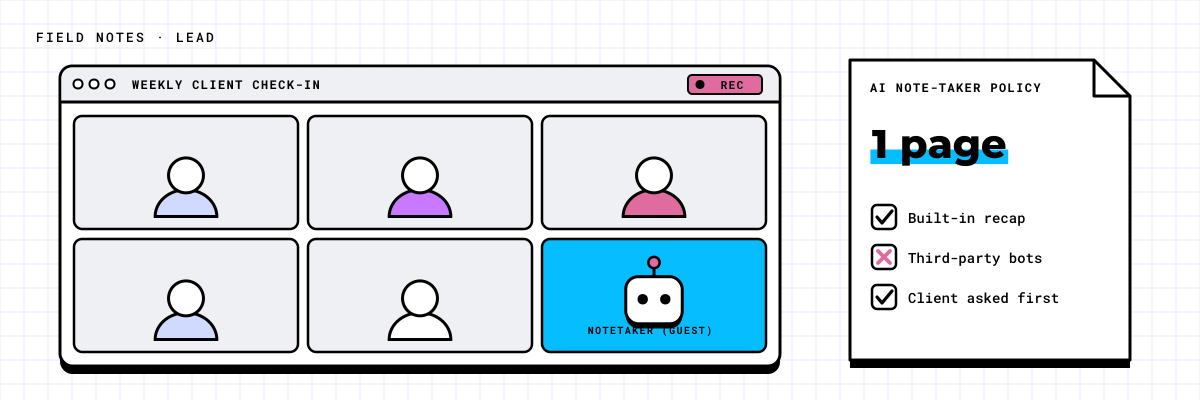
A client joined a project kickoff last month with Read.ai quietly transcribing everything. The bot came in through a guest link, identified itself only as "Meeting Notetaker" in the participant panel, and captured a conversation that included a preliminary cost estimate and several NDA-sensitive scope items.
Nobody on that call decided AI meeting bots were allowed. It just happened, because nobody had decided otherwise.
This pattern is playing out in mid-market tenants across every industry right now, and most IT leaders don't know it's happening in their own environment. There's no alert, no flag, no audit log entry that says "third-party AI captured this meeting." Just an unfamiliar participant in the People panel that most people scroll past.
Microsoft is changing that in May 2026. When they do, every IT Director is going to face a governance question they may not have a clear answer to yet. That's what this playbook is for: a 30-minute framework to block third-party bots from Teams meetings on purpose, not by accident, with a policy position your admin can configure on day one.
What's Actually Rolling Out in May
Message Center notification MC1251206 covers a new Teams meeting policy that detects external AI meeting assistant bots as they try to join meetings hosted in your tenant. Targeted Release tenants get it mid-May 2026. Worldwide General Availability and GCC follow in early to mid-June.
Here's how it works in practice. When a third-party bot attempts to join one of your meetings, Teams flags it in the lobby under a Suspected threats section with an Unverified trust indicator. The organizer sees the bot separated from human participants and has to explicitly admit, deny, or remove it. An admin policy in the Teams admin centre will let you configure the behaviour across the tenant, with the default set to require organizer approval before any detected bot can join.
A few things worth noting.
Detection is enabled by default for all tenants, with no action required to activate it. Microsoft has said the control will initially offer options along the lines of "do not detect bots" or "require approval," with more granular options to follow. Detection relies on meeting join metadata, and Microsoft acknowledges openly that some bots may slip through depending on how they behave.
That's the good news. The new control is genuinely useful and long overdue.
Here's the catch: the setting implements a policy decision. It doesn't make one for you.
If you walk into that admin centre control in May without having worked through your organization's position on AI meeting bots, you'll either pick the most restrictive option out of anxiety and create friction for legitimate use cases, or pick the most permissive one to avoid complaints and accomplish nothing. Neither is governance. Both are guesses.
The organizations that configure this well will be the ones that spent 30 minutes before May answering five questions. That's what the rest of this guide covers.
Why This Is a Bigger Problem Than Most Tenants Realize
"AI meeting bot" sounds low-stakes until you think through what these tools actually capture.
A tool like Read.ai doesn't just transcribe your meeting. It generates summaries, extracts action items, identifies speakers, tracks sentiment, and syncs all of that to a cloud platform that sits entirely outside your Microsoft 365 tenant. That data is governed by the bot operator's privacy policy, not yours. It may be stored in jurisdictions you haven't approved. And it's accessible to whoever configured the bot, which might be one of your employees or an external participant from another organization.
Now think about what actually gets said in your Teams meetings. Preliminary pricing before a contract is signed. HR discussions about performance or compensation. Executive strategy sessions. Project post-mortems. Legal reviews. These conversations happen in Teams every day at mid-market companies, and until this rollout, there has been no native control that prevents a third-party AI from capturing all of it.
For organizations in regulated or commercially sensitive industries, the exposure is a compliance issue, not a preference. Energy firms with data confidentiality obligations. Land services teams negotiating acquisition terms. Financial services with client confidentiality requirements. Professional services firms bound by engagement-level NDAs. In any of these contexts, an undisclosed third-party transcription tool capturing the conversation may already be putting you in breach of existing agreements.
And in any industry, the reputational cost when a client discovers their conversation was captured by a tool they didn't consent to is significant, and hard to recover from.
The meeting bot problem isn't theoretical. It's already in your tenant. Microsoft is giving you a tool to address it in May. The question is whether you'll be ready to use it.
The Setting Answers "How." You Have to Answer "What."
This is the part that forum threads and news articles keep missing.
Every top search result on this topic right now is either a news recap of the MC1251206 announcement, a tactical workaround post about lobby settings and app permissions, or a Reddit thread where admins ask "how do I block Read.ai?" The answers vary and most of them are partial fixes.
What nobody has written is the governance question that actually needs answering first: what is your organization's policy on AI meeting bots, and is that policy the same across internal meetings, external collaboration calls, client-facing engagements, and meetings your clients host?
Those are four different scenarios. They may well have four different answers. If you configure the new Teams setting without working through each one, you're applying a single blanket response to a multi-scenario problem, and you'll be revisiting it the first time an exception comes up.
The framework below takes most leadership teams about 30 minutes. The output is a clear policy position your admin can configure and your comms team can communicate.
The 5-Question Meeting Bot Policy Framework
Question 1: Can your own employees use AI meeting bots in internal meetings?
Your baseline position. Three options to work with:
Allowed with disclosure. Employees may use AI meeting tools, but must say so at the start of every meeting.
Allowed with consent. Bots can run only if all participants actively agree before the meeting begins.
Blocked entirely. AI meeting bots are not permitted in company meetings regardless of who introduces them.
Most mid-market organizations in professional services and consulting land on "allowed with disclosure" for routine internal project meetings. This acknowledges the real productivity value of AI notetaking while setting a clear expectation. Energy and construction firms with frequent contractor access and commercially sensitive project data often lean toward "allowed with consent" or blocked outright for anything above project-manager level.
There's no universally right answer. Think about the typical sensitivity level of your internal conversations, your industry's confidentiality norms, and whether your staff currently uses these tools. Some of them almost certainly do, whether you know it or not.
Question 2: Are external bots permitted in your internal-only meetings?
Different question from what your own employees do. A client, vendor, or contractor can join your Teams meeting with an AI bot running on their side, connected to their account, not yours, invisible to your existing controls.
Your policy needs to address this scenario separately. A common approach: external bots are not permitted in high-sensitivity internal meetings (financial reviews, HR discussions, executive strategy, legal), but are tolerated on open project collaboration calls where the discussion is lower-risk and all participants are external-facing anyway.
The key distinction: your policy for your employees' bot use and your policy for bots that external participants bring into your meetings are two different decisions.
Question 3: What is your policy for client-facing meetings you attend?
You're in a Teams call hosted by or with a client. They have Read.ai running on their end. What does your organization do?
This is the scenario that catches professional services firms off guard most often, and it has the most direct legal and reputational surface area. Options: require mutual disclosure before the meeting begins, allow it without comment, or treat it as a contract matter for regulated engagements and flag it to your legal team.
For energy, land services, financial services, and legal sector organizations, this answer should exist in writing before the technology question, not after. If your client agreements include confidentiality terms, an undisclosed third-party transcription tool may already be in breach of them.
Question 4: What do you do when a client brings a bot to a meeting you host?
Related but distinct. You're running the meeting. A client joins with an AI notetaker active on their device or account. The new Teams detection control will flag this in the lobby for your organizer. What does your organizer do next?
Remove the bot and continue.
Acknowledge it, ask for consent from all participants, then admit it.
Note it in the meeting record and proceed.
Stop the meeting.
Document this scenario explicitly and brief your client-facing staff before the feature goes live. You don't want account managers or project leads making ad hoc calls on this in front of clients. The conversation ("I need to ask you to turn off your notetaker") goes better when the person has a clear policy backing them up rather than a personal judgment call made live.
Question 5: Do you block, notify, or log, and does the answer vary by meeting type?
This is where the new admin centre setting gets its configuration. The initial control will offer at least "do not detect bots" and "require organizer approval." Microsoft has committed to more granular options over time, but you should plan around what's shipping first.
High-sensitivity meetings (executive reviews, HR, legal, contract negotiations, financial discussions) probably warrant require-approval with a default-deny posture regardless of who introduces the bot. Routine project check-ins and general collaboration calls can likely proceed with an organizer-approval prompt that preserves the option for legitimate use while surfacing awareness.
A caveat worth naming: if your tenant is under 50 users and your meetings are overwhelmingly internal, a blanket require-approval policy with clear end-user comms is probably enough on its own. The tiering exercise matters most when you have varied meeting types and external participants showing up in volume.
Define your tiering now. When the setting lands in your admin centre, you'll be selecting an option that reflects a decision you've already made, not guessing what seems reasonable in the moment.
Not sure where to start on this? Floor 16's complimentary Microsoft 365 assessment covers exactly this kind of pre-rollout governance work. One session, clear policy recommendations you can act on immediately. Get in touch.
What the New Setting Will Actually Let You Configure
When the Teams meeting bot detection control lands, here's what to expect in the Teams admin centre.
You'll find the policy under Meetings, then Meeting policies, then the policy you want to edit. You'll be able to configure detection behaviour per policy, which means you can apply different settings to different groups of users. Stricter policies for executive and HR meeting organizers. Lighter-touch settings for general staff. The PowerShell equivalent will almost certainly land in a later version of the Teams module (as of V7.6, Set-CsTeamsMeetingPolicy does not yet expose a bot-detection parameter), so early configuration will be done through the portal.
Because detection is on by default, even if you choose approval-required rather than outright denial, you'll have visibility you don't have today. Organizers will see a clear signal when a third-party AI is waiting to join, flagged under the Suspected threats section with an Unverified indicator, rather than trying to identify an unfamiliar participant name in a crowded lobby. That visibility alone is a meaningful governance improvement over the current state.
And a tradeoff worth being honest about: detection isn't perfect. Microsoft has said directly that some bots may not be detected depending on their behaviour, particularly if they mimic human participant join patterns. The control is a big improvement. It's not a complete replacement for user training and clear organizational policy.
People Also Ask
How do you block a bot from joining a Microsoft Teams meeting?
The native admin-level control arrives with the Teams bot detection rollout in May and June 2026 (MC1251206). You'll configure it under Meetings > Meeting policies in the Teams admin centre. Detection is enabled by default, and you can set the policy to require organizer approval before a detected bot can join. Until the rollout reaches your tenant, your options are tenant-wide lobby settings, app permission policies, and organizer-level vigilance in the People panel.
How to block AI bots from joining Teams meetings?
Once the May 2026 rollout reaches your tenant, configure the meeting policy under Meetings > Meeting policies in the Teams admin centre. The default setting requires organizer approval before a detected external AI bot can join, and you can tighten or loosen this per meeting policy assigned to different user groups.
How to get rid of a bot that's already in a Teams meeting?
If a bot is already in an active meeting, the organizer can remove it. Open the People panel, select the participant's name, open the three-dot menu, and choose Remove from meeting. For prevention going forward, the new meeting policy control rolling out in May is the right long-term solution.
How do I disable third-party apps in Teams?
Teams admin centre > Teams apps > Permission policies. You can block apps by name or restrict all third-party apps to an approved allow-list. Note that this controls app installation and availability, but doesn't address every way a bot can join a meeting. The new meeting bot policy rolling out in May handles the meeting-join vector specifically.
A User Communication Template You Can Adapt
Once you've made the policy decision and configured the setting, send a short note. Specificity prevents helpdesk tickets.
Subject: Update to Our Microsoft Teams Meeting Policy, Effective [Date]
Hi team,
Starting [date], [Company Name] is updating our policy on AI notetaking apps in Teams meetings.
What's changing:
Option A (allowed with disclosure): AI meeting assistants such as Read.ai, Otter.ai, and Fireflies are permitted in company meetings, but you must let all participants know at the start of the call that transcription is active.
Option B (approval required): AI meeting assistants are not permitted to join company Teams meetings as participants by default. Microsoft Teams will flag any that try, and the meeting organizer will decide whether to admit them. Please keep these tools for your own personal notes. They should not appear as a named participant in any company call.
For external and client meetings: [insert your policy from Questions 3 and 4].
If you see an unrecognized participant in a meeting that looks like an automated notetaker, you can remove them via the People panel. Questions? Contact [IT helpdesk].
Keep it brief and jargon-free. Your staff don't need to understand the Microsoft rollout or the admin control. They need to know the rule and what to do when they see something unexpected.
What to Do Between Now and May
The Targeted Release rollout is roughly four weeks away. General Availability follows a few weeks later. Here's the preparation sequence:
Work through the five questions with your leadership team. A one-paragraph written decision with sign-off is enough. The goal is to have the answer before the admin centre asks for it.
Map your meeting types to your policy positions. Executive reviews, client calls, HR discussions, and routine project check-ins may all warrant different treatment. Build the tiering before you're configuring live. If you have multiple Teams meeting policies already assigned by user group, this will translate directly into the new control.
Brief your client-facing staff on scenario four. Account managers and project leads need to know what to do if a client brings a bot to a meeting they're hosting. That conversation is much smoother when there's a clear policy behind it.
Draft your user communication now. Adapt the template above. Have it ready to send on the day you configure the setting.
When the Teams meeting bot policy control arrives in your admin centre in May or June, you'll be clicking through a configuration that reflects a decision your organization has already made. That's the difference between governance and guesswork.
If you want to work through this framework for your specific environment before the rollout, we can help. Floor 16's M365 assessments cover pre-deployment governance work like this, and 30 minutes now saves a lot of cleanup later. Start the conversation